app-tester
BlindBit Desktop User Guide
Last Updated: 2025-10-30
Step-by-step guide to setting up and using BlindBit Desktop wallet
Table of Contents
- Building from Source
- Initial Wallet Setup
- Using BlindBit Desktop
- Sending Transactions
- Receiving Transactions
- Troubleshooting
Building from Source
Source Code: https://github.com/setavenger/blindbit-desktop
Instructions for compiling BlindBit Desktop from source Quick Start
- Verify Go version 1.24 or later
go version - Compile blindbit-desktop
cd blindbit-desktop
git checkout -B alpha origin/alpha
go build -o blindbit-desktop ./cmd/blindbit-desktop
./blindbit-desktop
Initial Wallet Setup
This workflow demonstrates how to recover a silent payments wallet from seed phrase
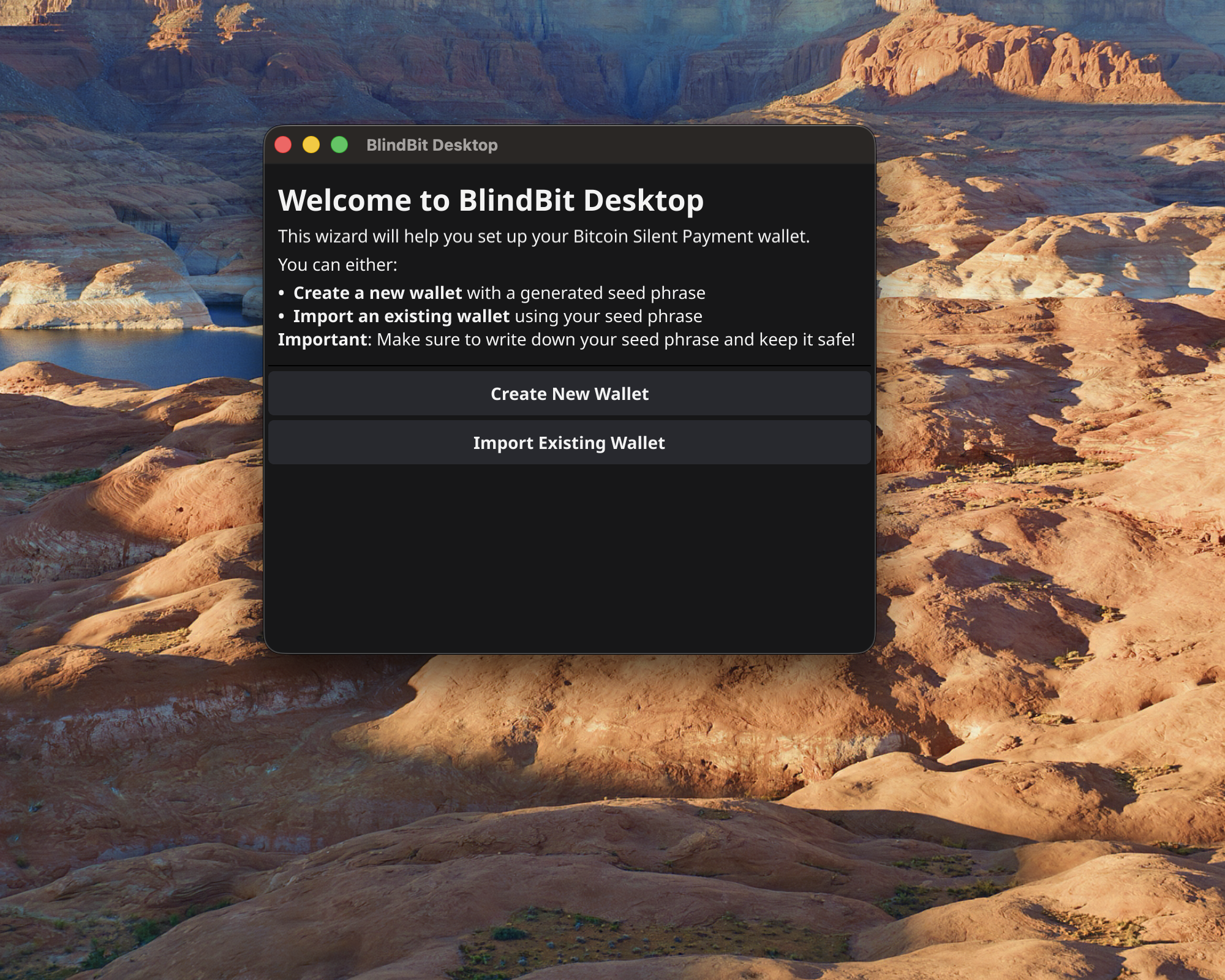
Import Existing Wallet
Select “Import Existing Wallet” to restore wallet from seed phrase
Finalize Import Wallet
- Enter seed phrase
- Select “Import Wallet”
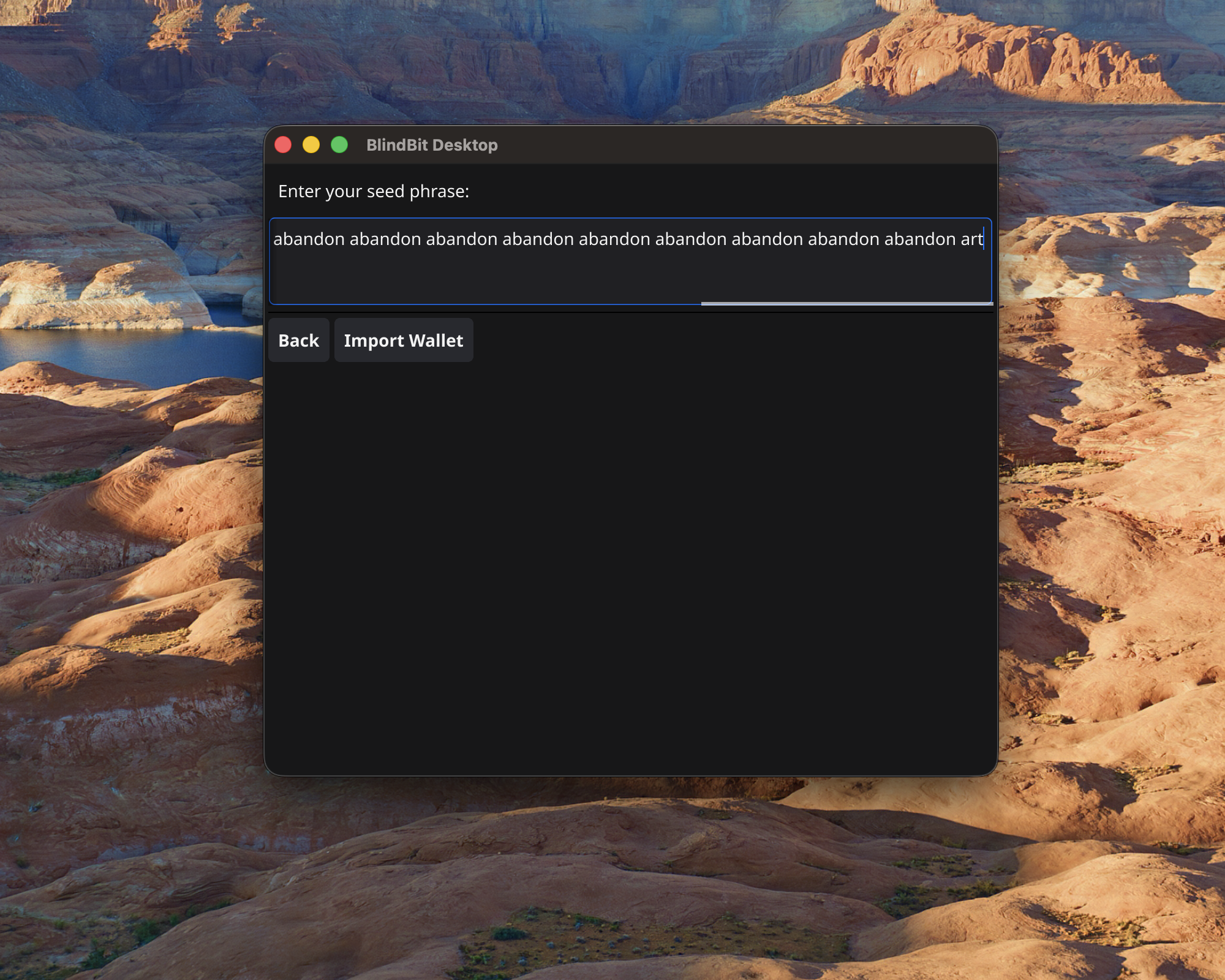
Note:
12 or 24 word mnemonic supported
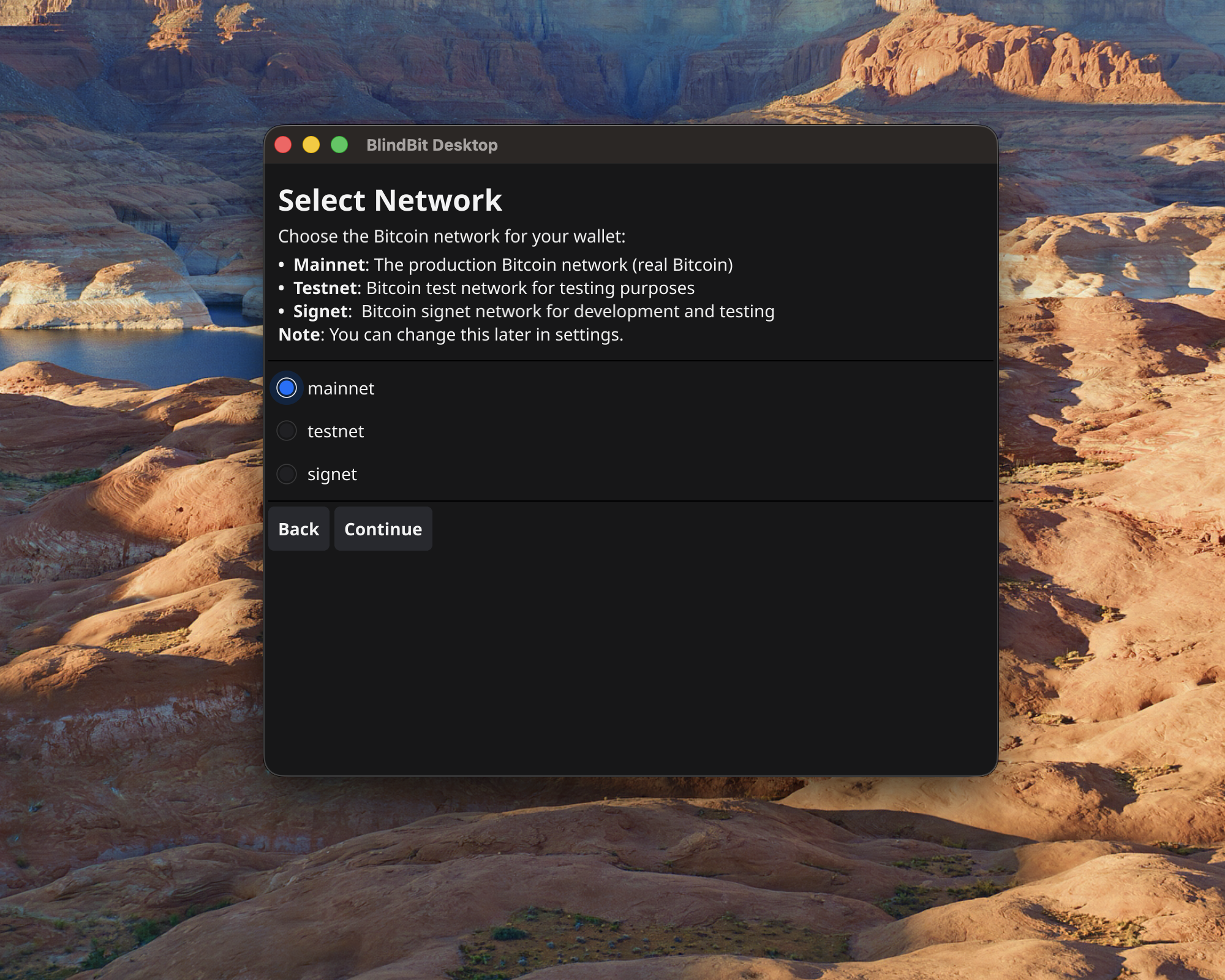
Make Network Selection
- Choose “mainnet” for production use
- Select “Continue” to confirm network
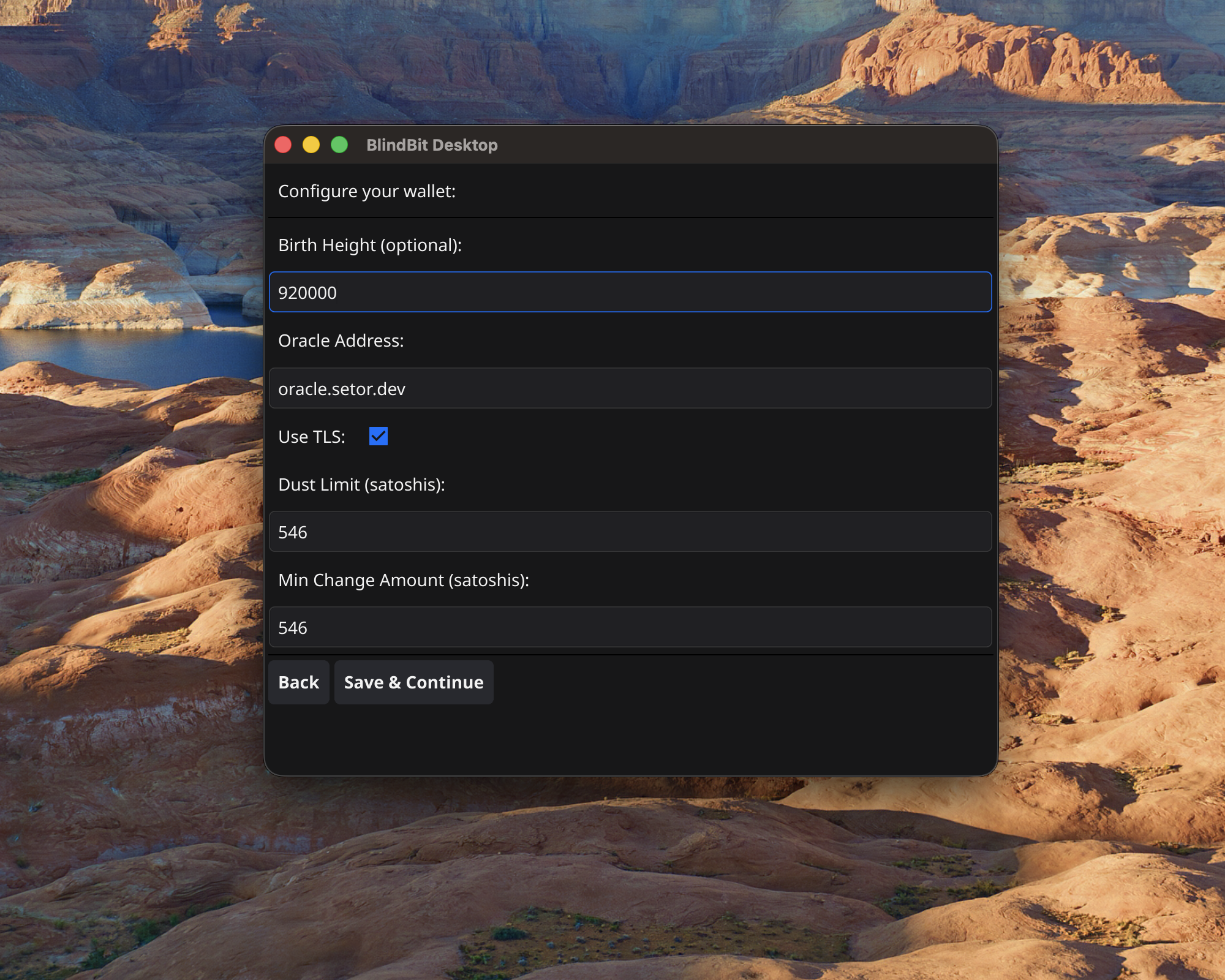
Finalize Wallet Setup
- Choose a “block height” to capture any previous silent payment transactions for this wallet
- Select “Save & Continue” to complete setup and start scanning for transactions
Note:
wallet.dat is stored in ~/.blindbit-desktop by default
Warning: key material in this file is not encrypted at this time
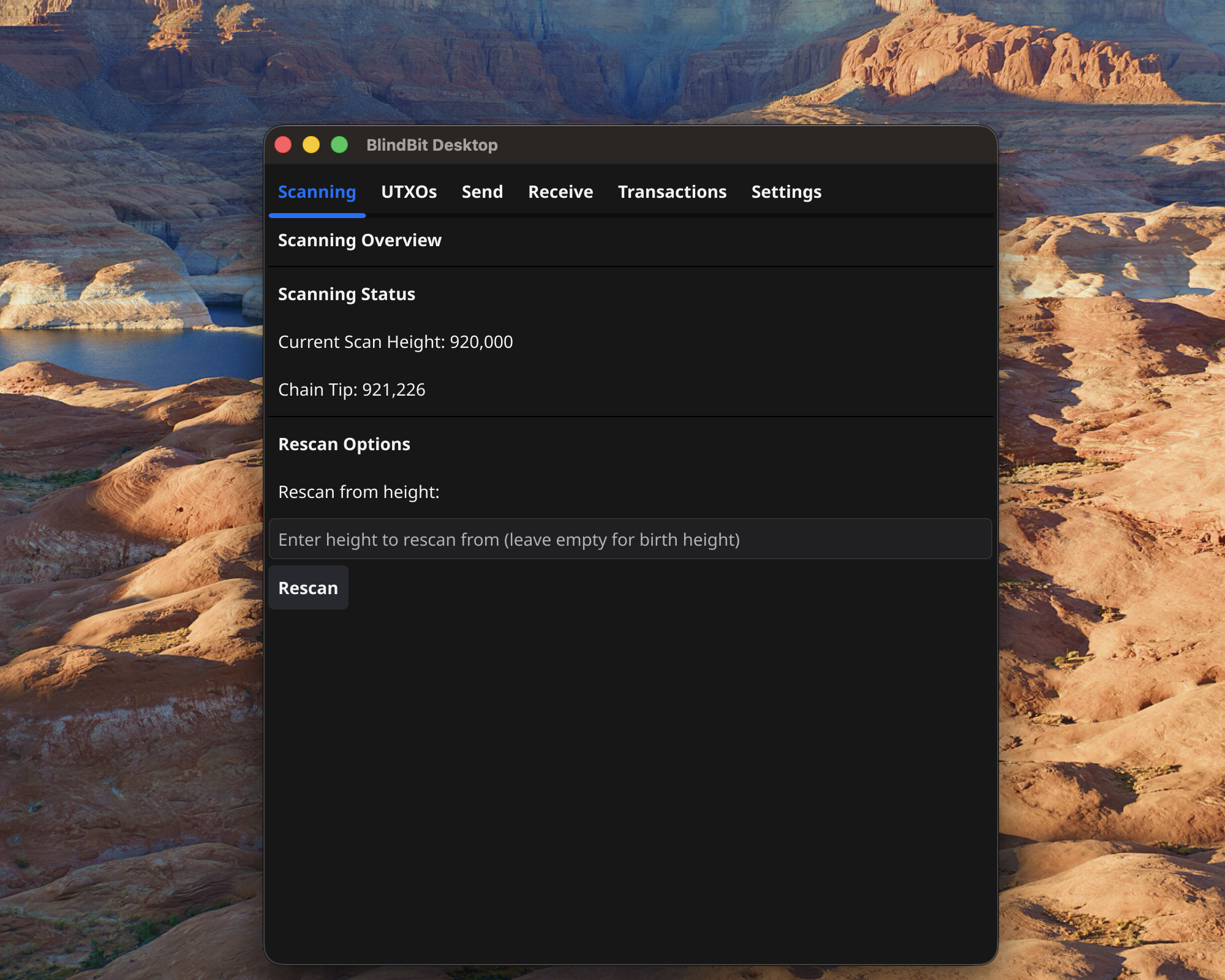
Scanning
Monitor “Scanning Status” on this view
Using BlindBit Desktop
Overview of wallet and navigation
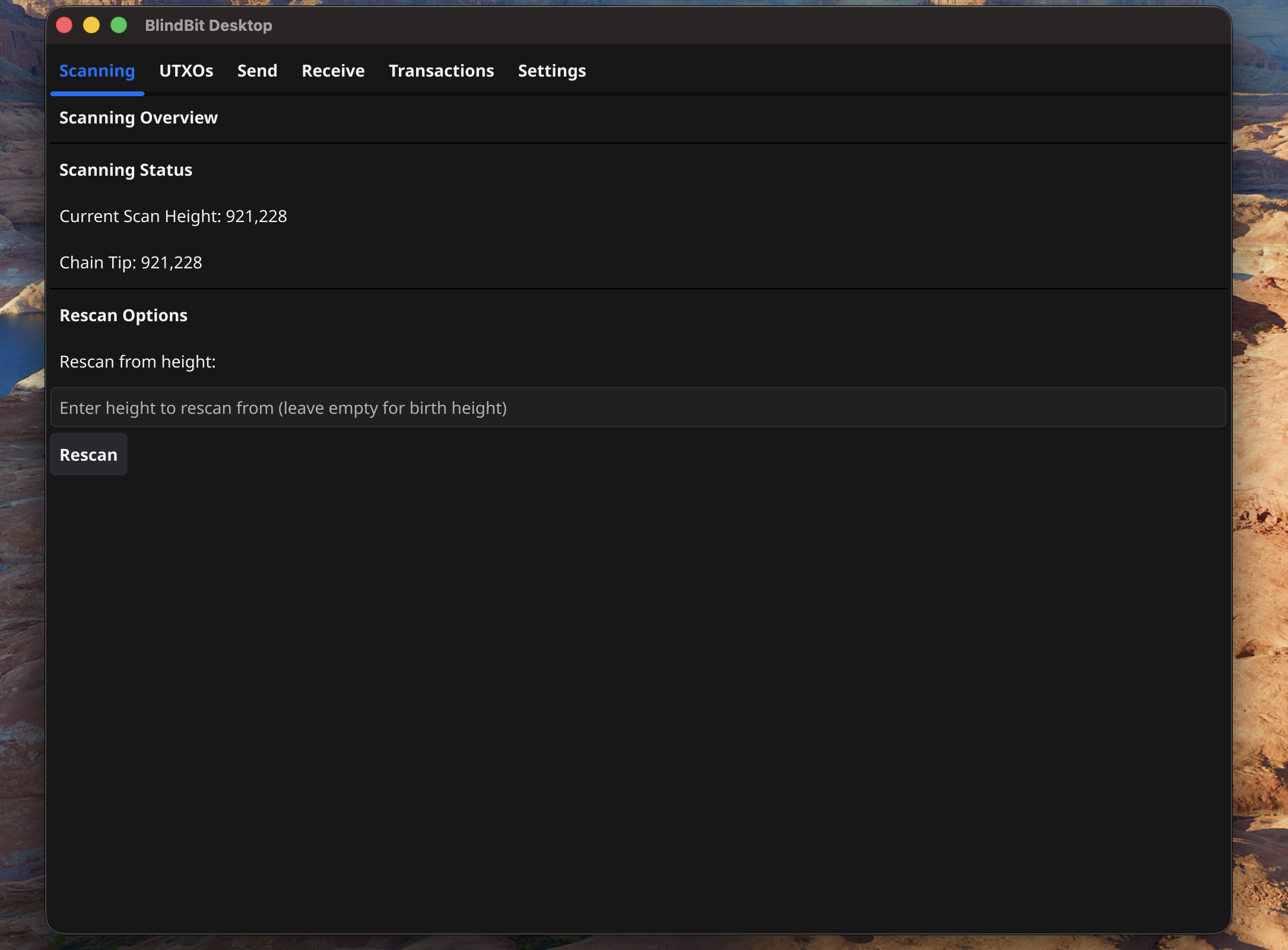
Scanning
View blockchain scanning progress
Note:
“Current Scan Height”: # will match “Chain Tip” when sync is complete
Rescan Button: only use this button after changing “birth height” in settings or testing
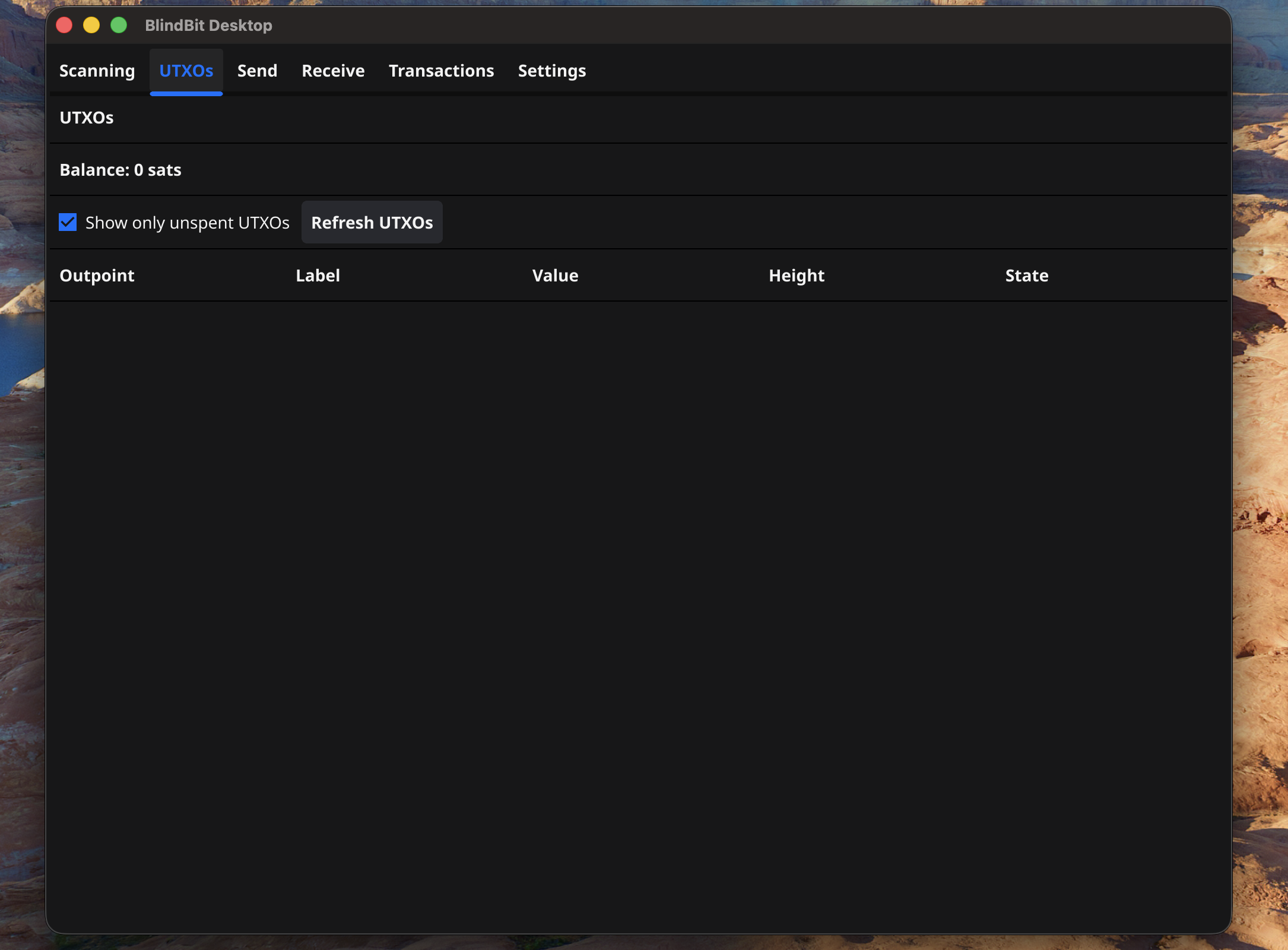
UTXOs
View wallet balance and unspent transaction outputs
Note:
Toggle the “Show only unspent UTXOs” to view spent too
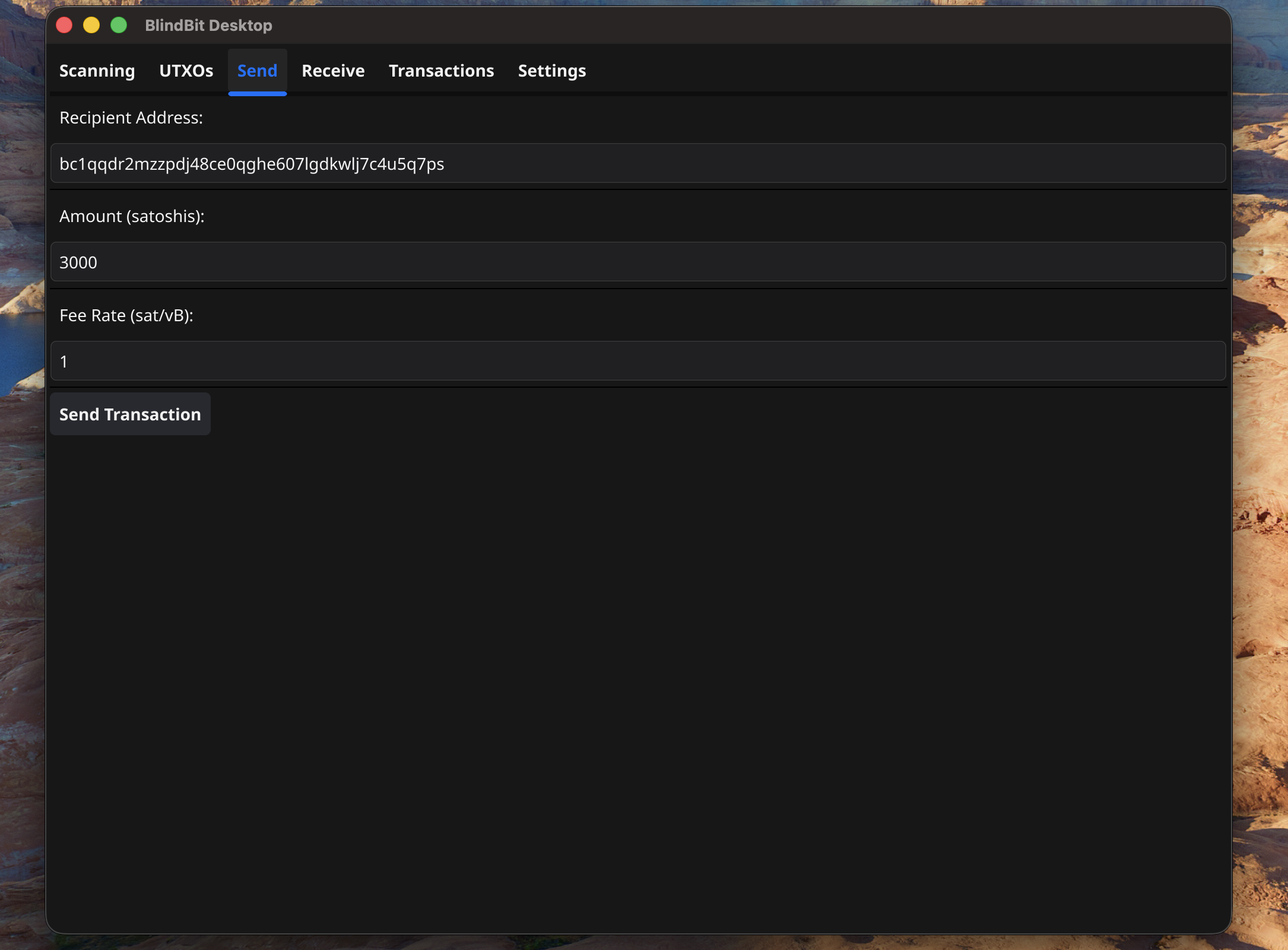
Send
Send bitcoin to other wallets
Note:
Fee Rate must be greater than or equal to 1 sat/vB
Receive
Copy silent payments address to share with others
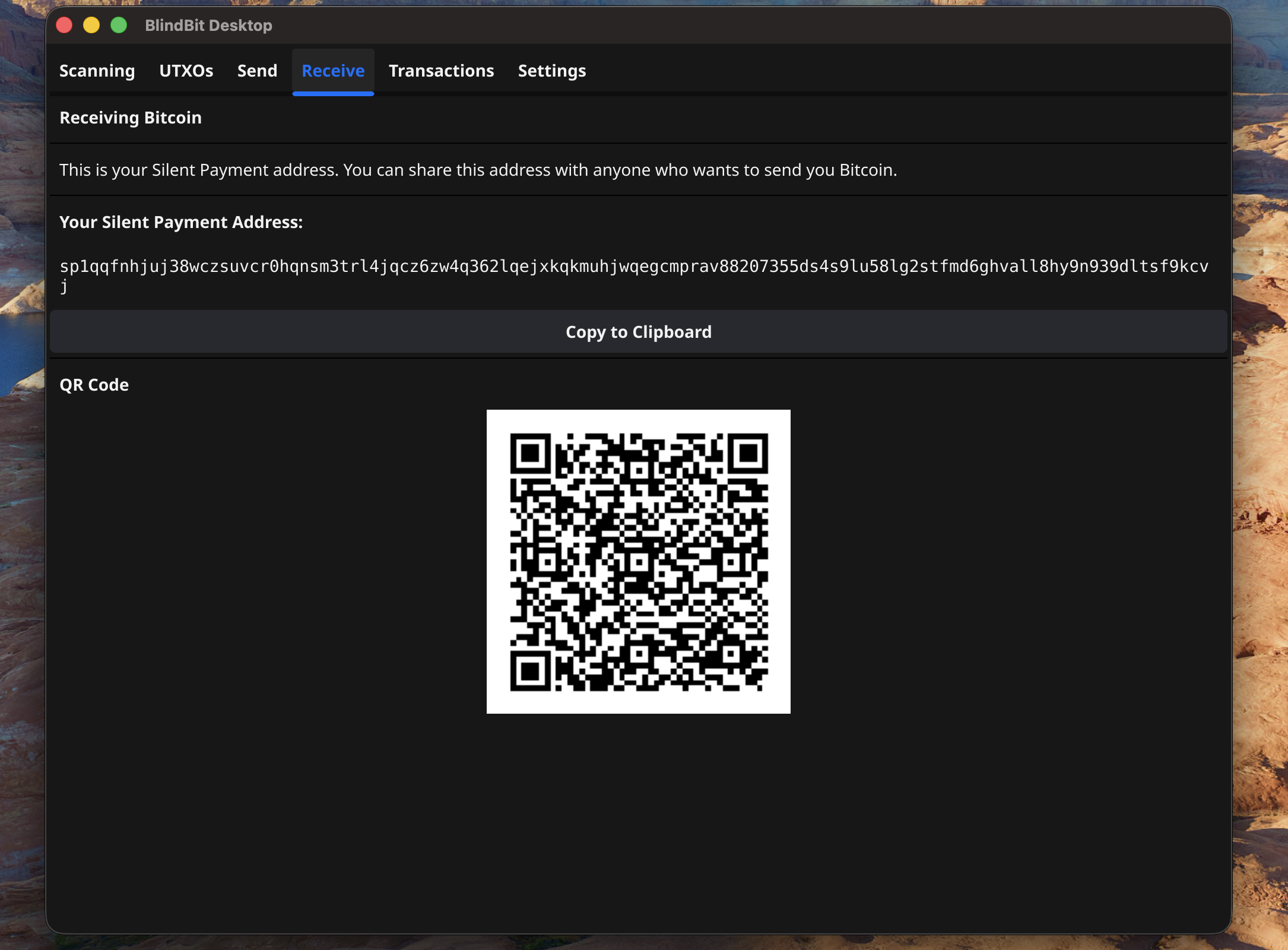
Note:
Only one address is required, each transaction will have a unique on chain taproot address
Transactions
View transaction history
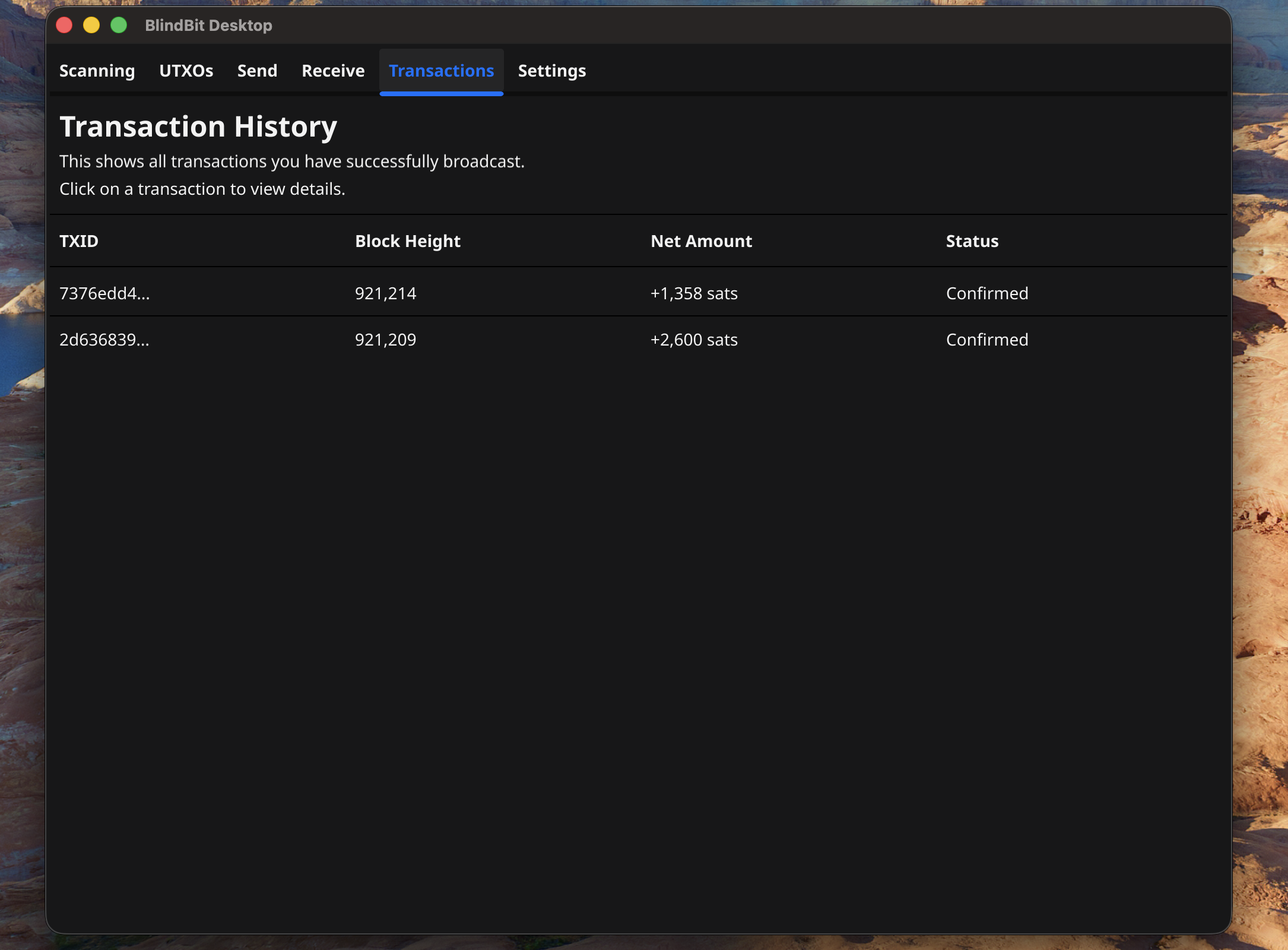
Note:
received transactions will only appear once the transaction is confirmed in a block
spending transactions will appear immediately
fees will only appear if spent from this wallet - not available after recovery
Settings
Modify wallet settings and configuration
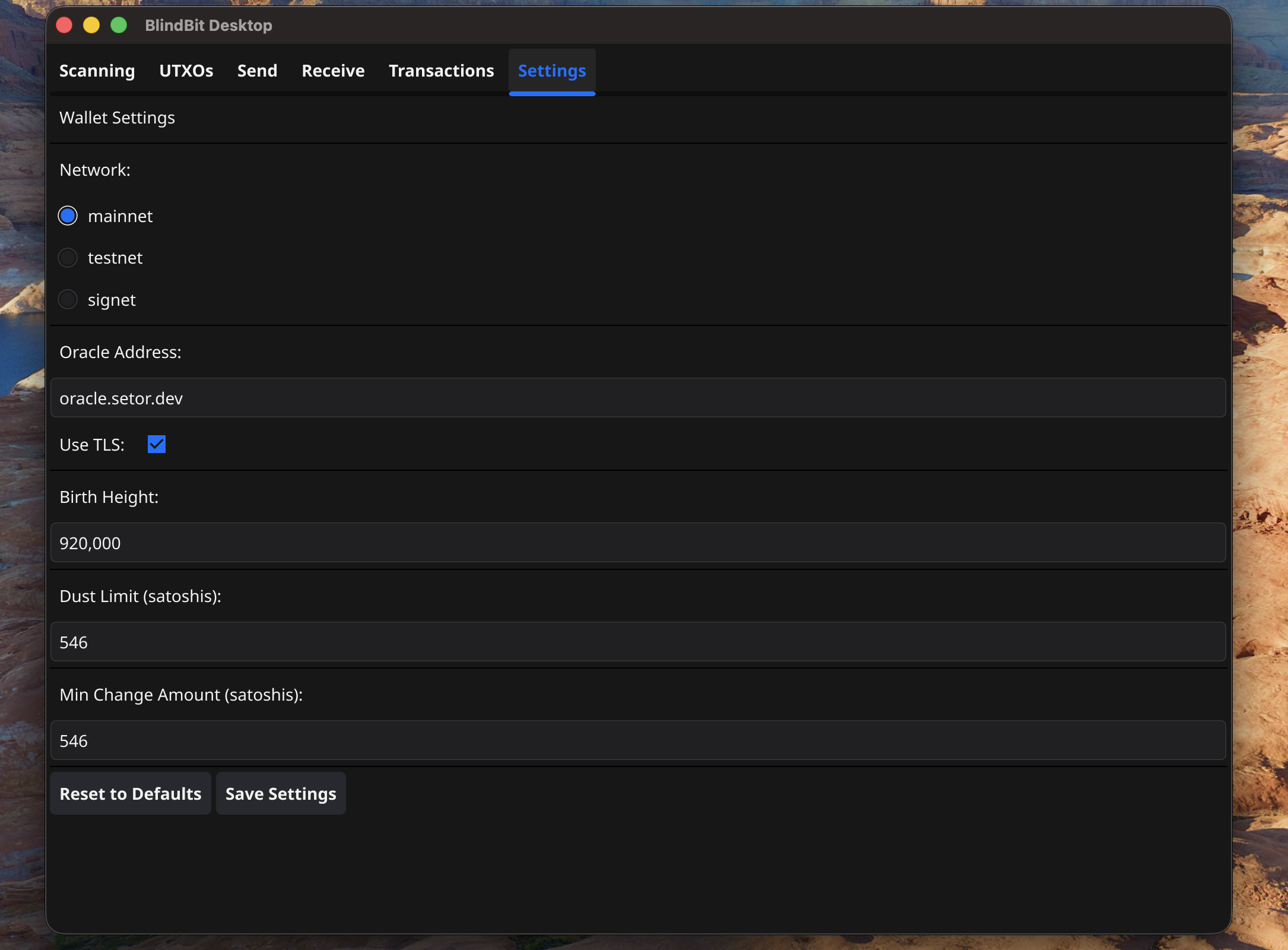
Note:
restart may be required after applying new settings
Sending Transactions
Highlight the basics of sending a payment from blindbit-desktop
Enter Recipient Information
- Enter a recipient address, the amount to send, fee rate
- Select “Send Transaction” to view details
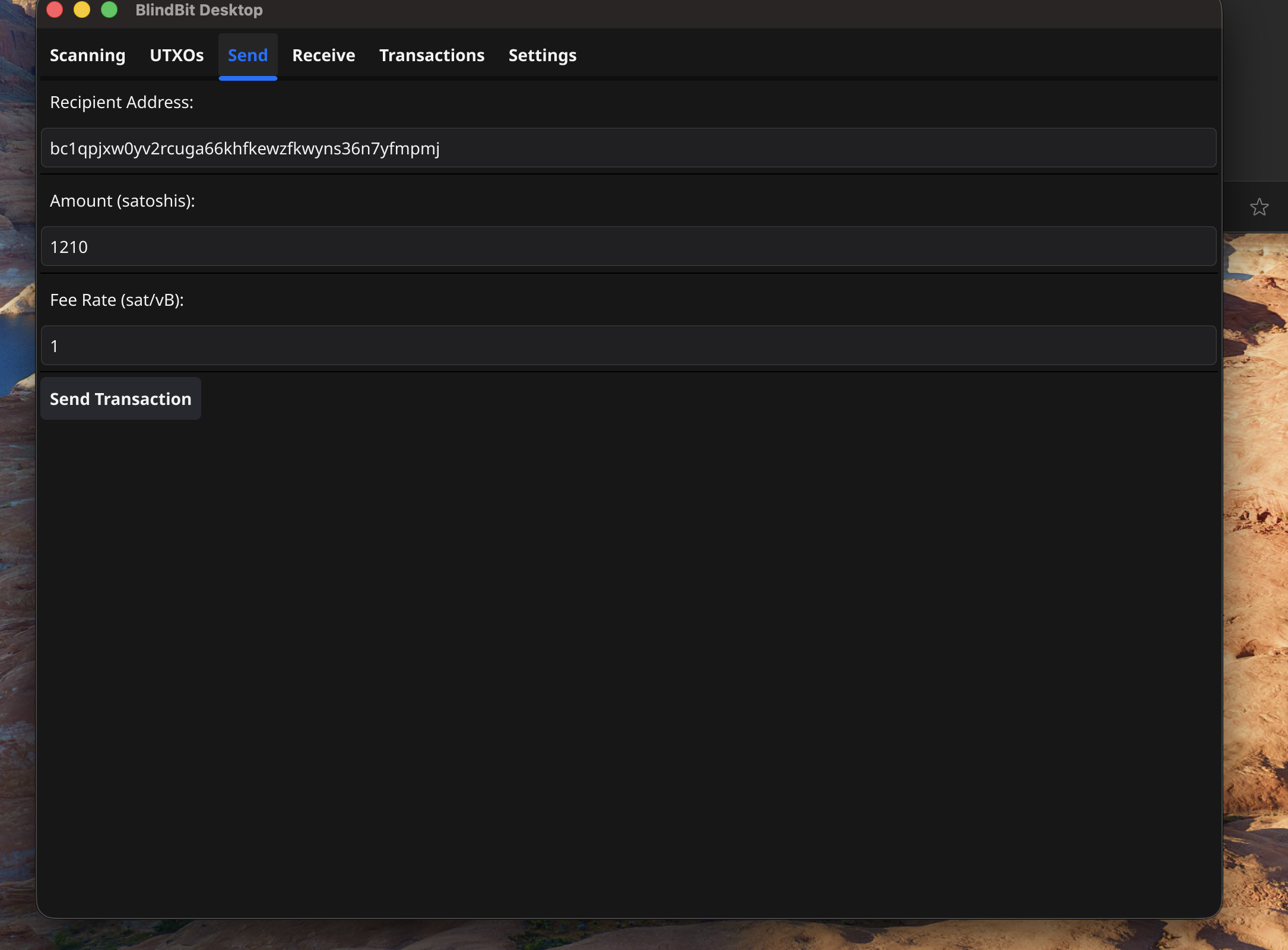
Note:
Currently blindbit-desktop does not support coin selection or Human Readable Names (HRN) addresses
Fee rate will be increased to spend remaining UTXO to avoid dust
Preview Transaction
Select “Confirm & Broadcast” to send the transaction
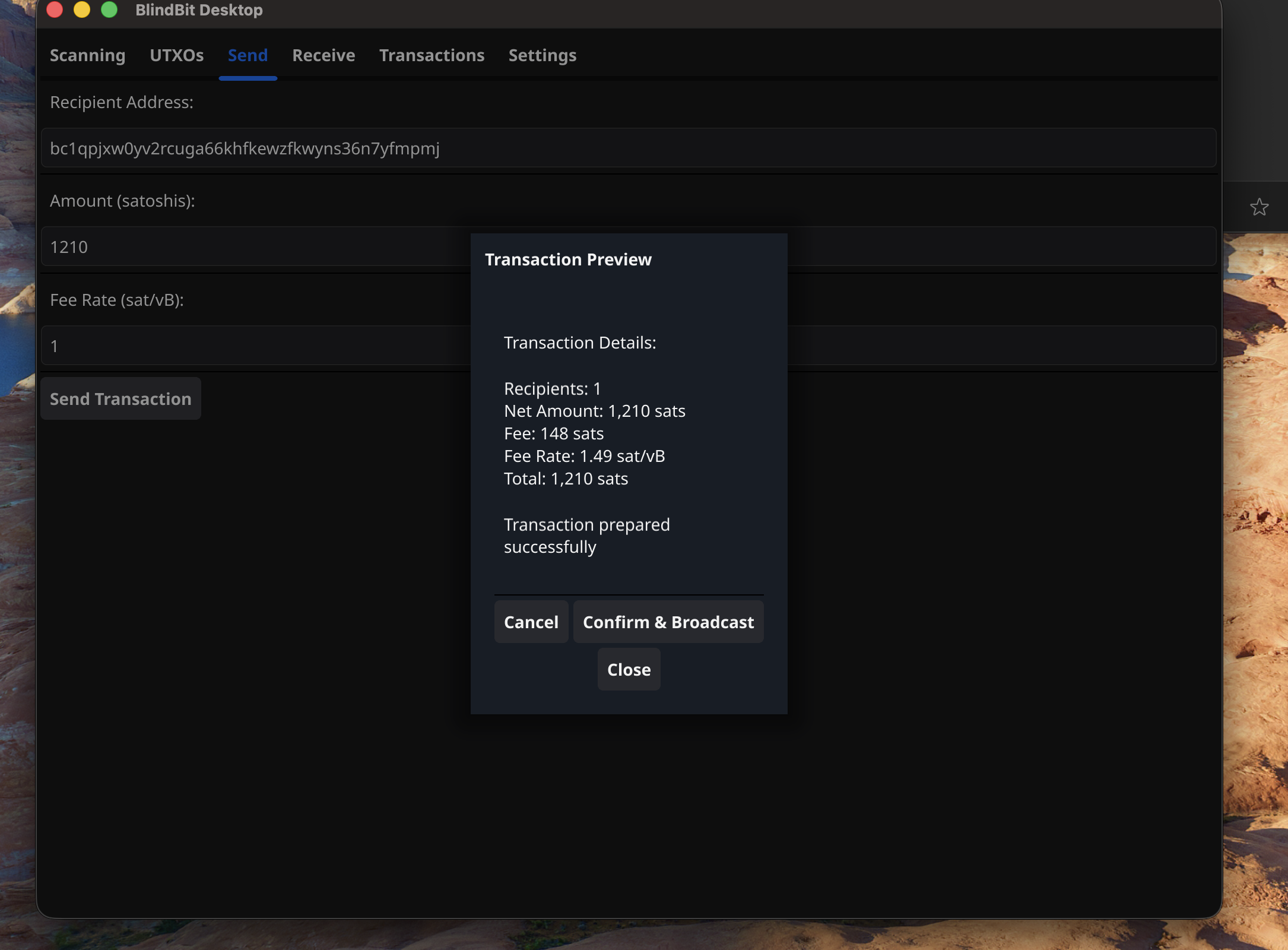
Note:
Select “Close” to return to the previous view and make changes
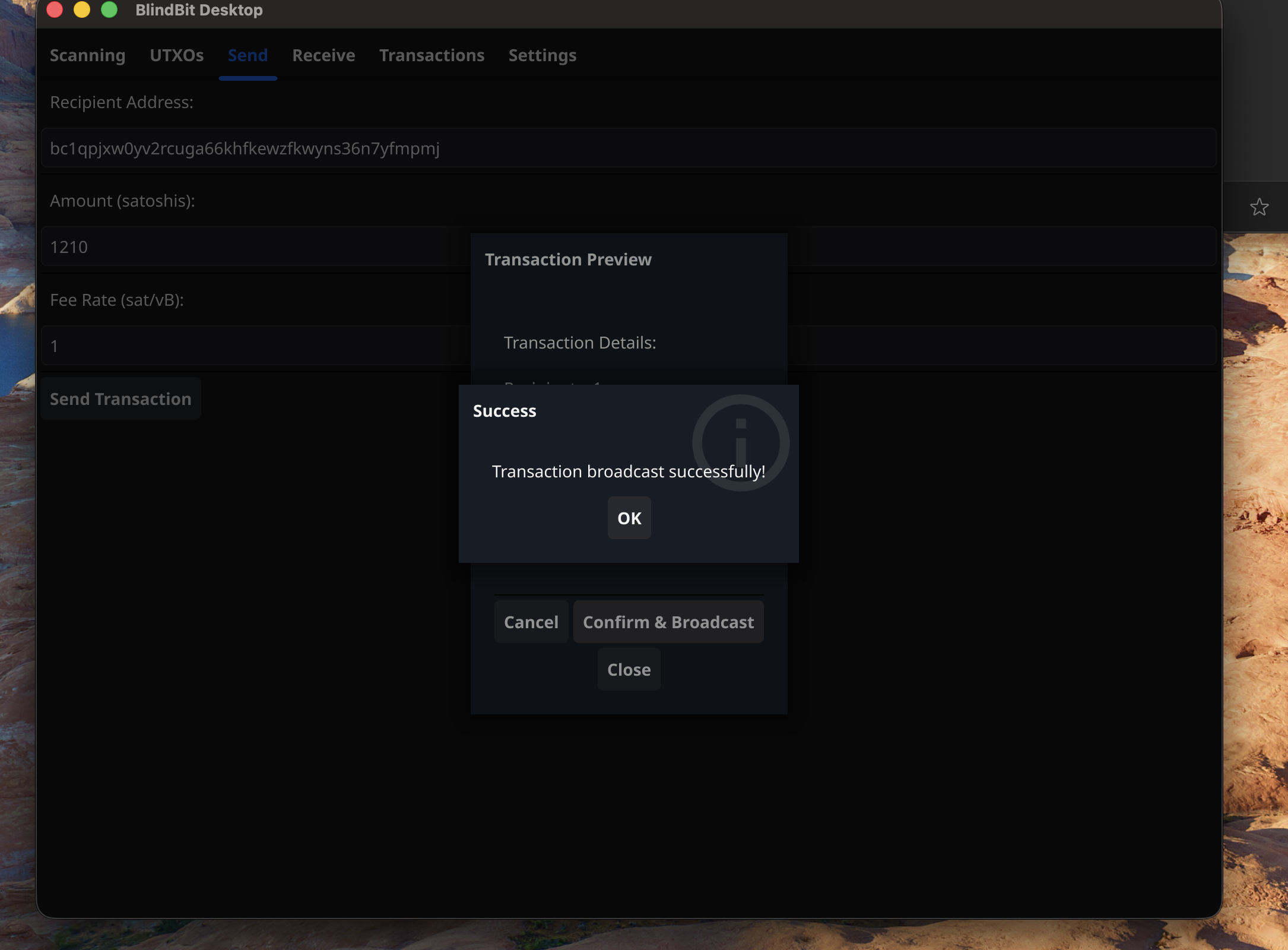
Transaction Confirmation
Click “OK” to close broadcast response
Pending Transactions
Unconfirmed transactions will have a “Pending” status
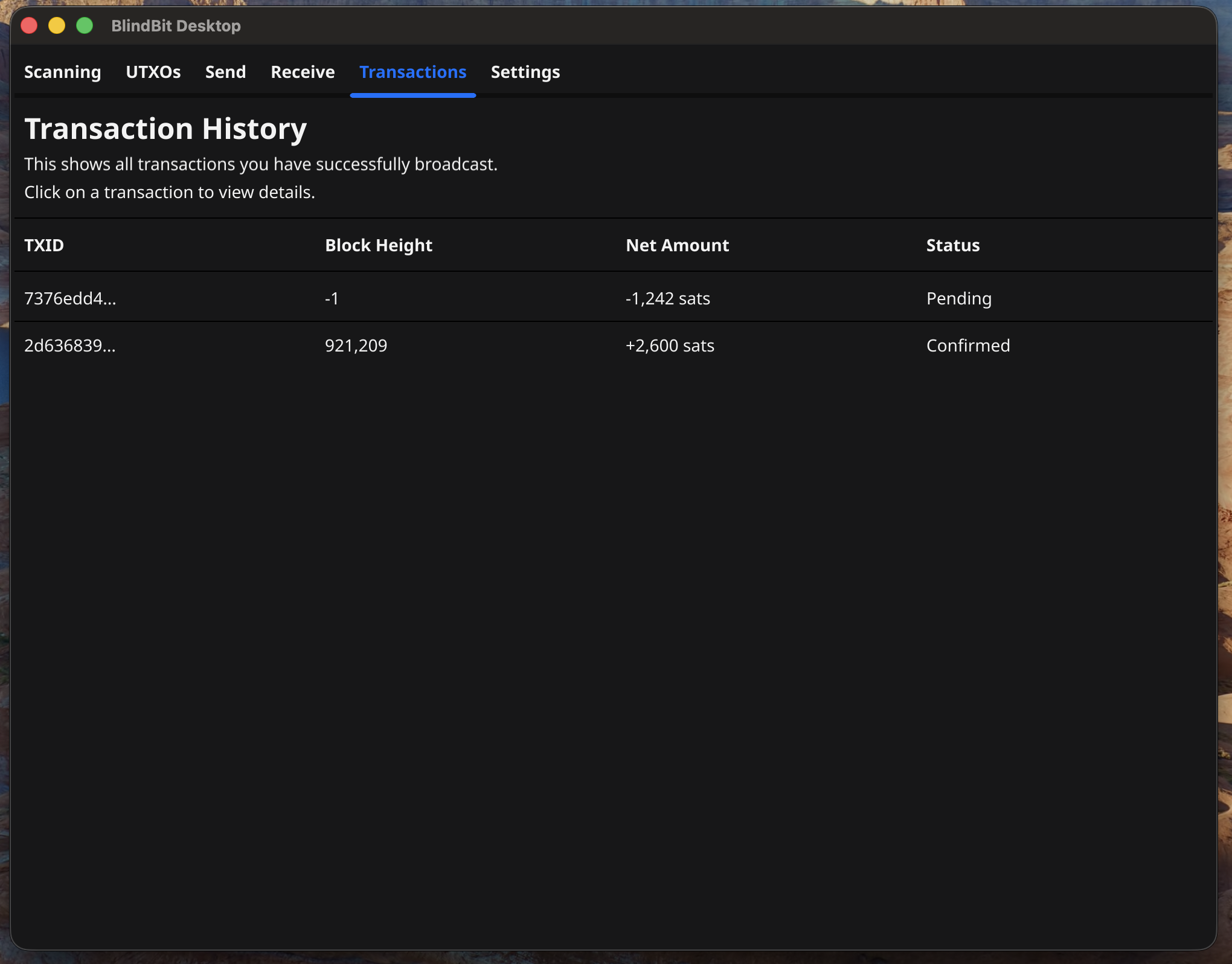
Note:
Select a “transaction” to view details
Spent UTXOs
While a transaction is being confirmed the whole UTXO is treated as spent
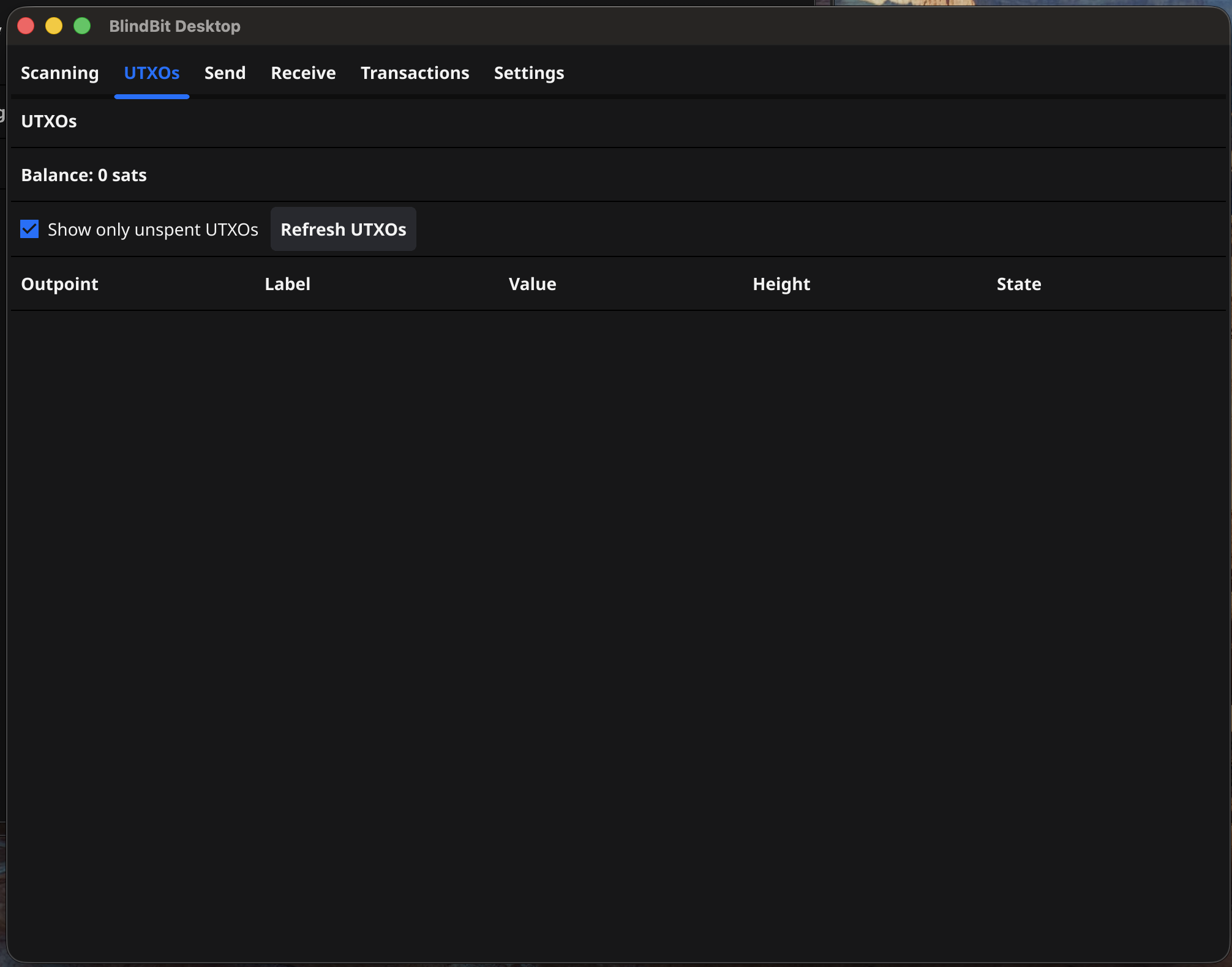
Note:
Toggle “unspent” to view unconfirmed_status
Receiving Transactions
Overview of receiving funds to blindbit-desktop
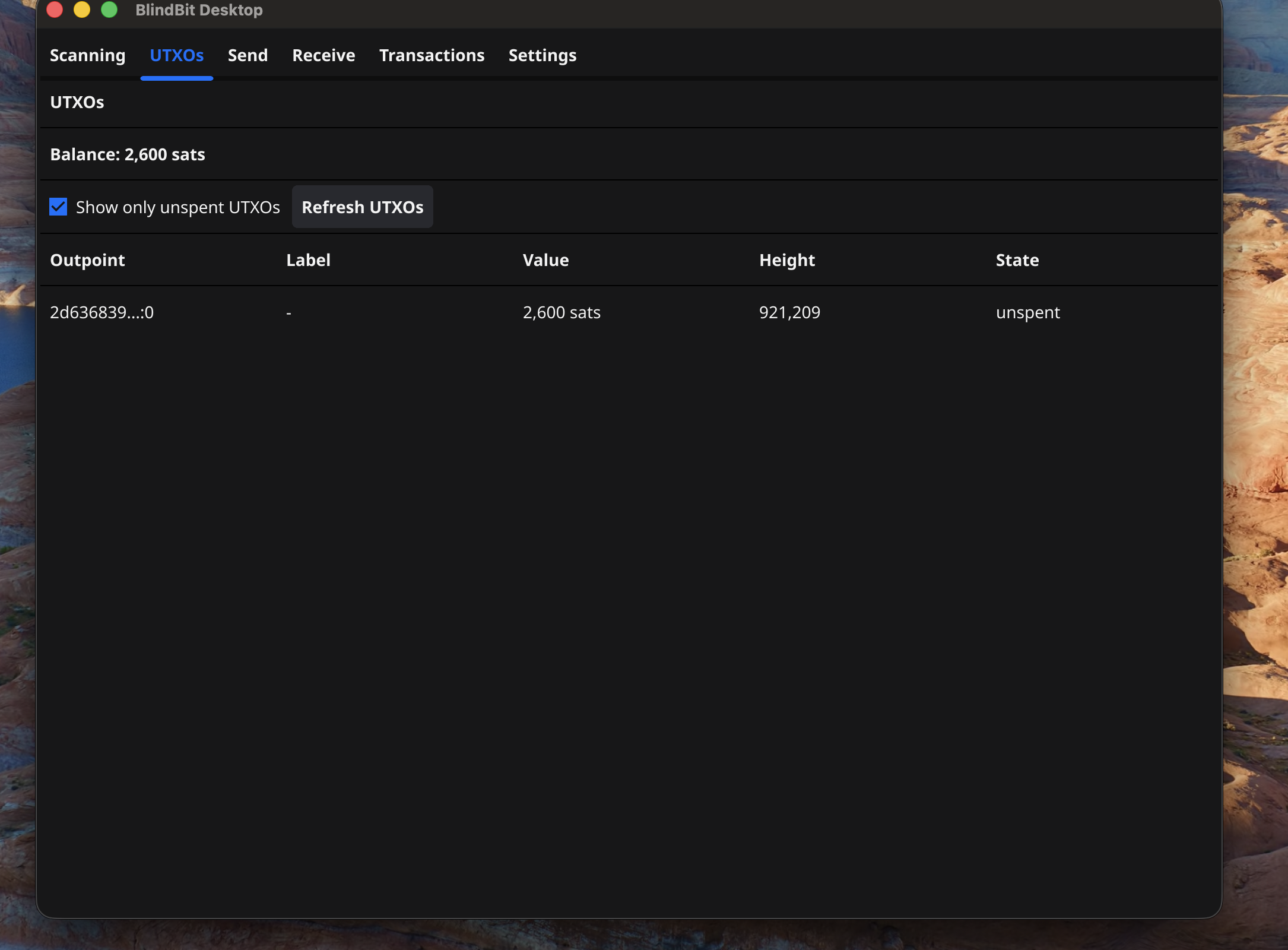
UTXOs
UTXOs will appear here automatically after confirmation
Transactions
- History of wallet transactions
- Select a “transaction” to view details
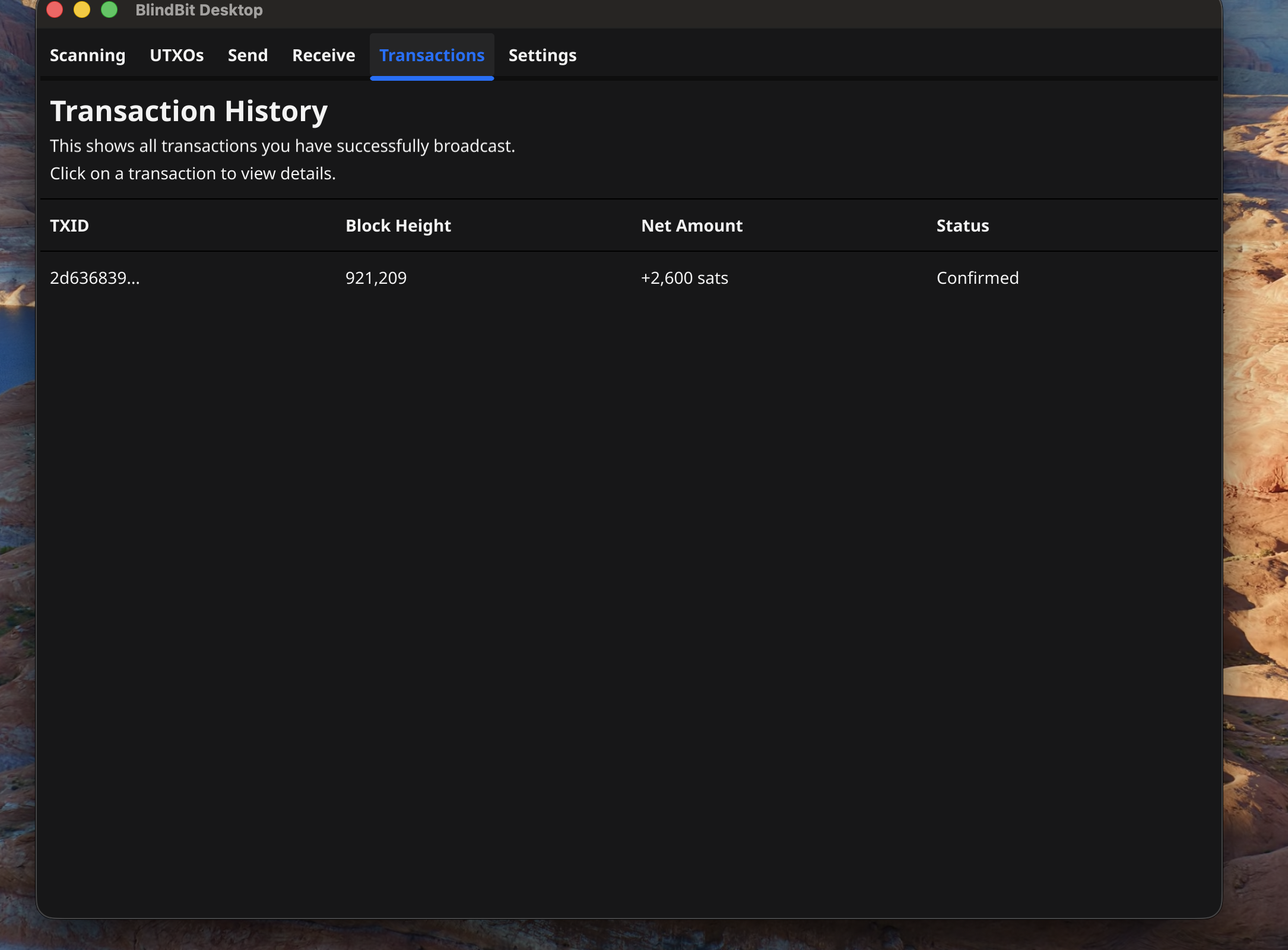
Note:
received transactions will appear here automatically when confirmed
Troubleshooting
Screenshots Don’t Match
- Verify the wallet was compiled from the correct branch “alpha”
Sync Issues
- Verify your internet connection
- Check firewall settings
- Allow sufficient time for blockchain synchronization
Need More Help?
- Report an issue in the project repository: https://github.com/setavenger/blindbit-desktop
- Join Silent Payments discord and ask for help
This guide is maintained automatically. If you notice any discrepancies, please report them.